The command bar: everything in Musset, by name
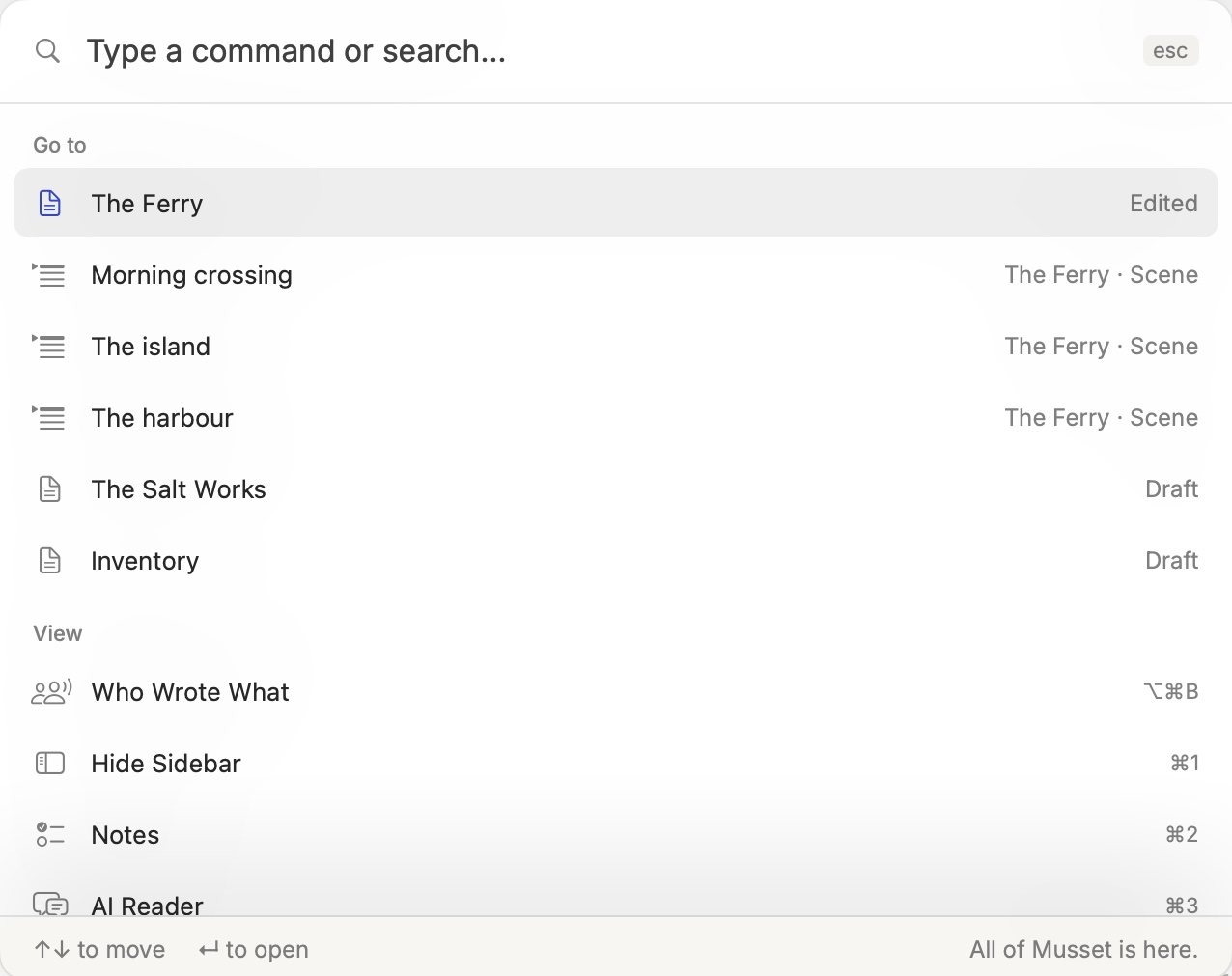
Press ⌘K and type. The command bar goes to any chapter or scene of any of your books, opens a character's sheet, runs any command, and searches the text.
One key for everything
Musset keeps its interface out of the page. There is no toolbar full of buttons, because there is one place that holds them all: press ⌘K and type what you want.
The field says Type a command or search…. Move with ↑ and ↓, press ↩ to open, Esc to close. Typing matches any part of a name, ignores accents and capitals, and takes several words in any order: ferry morn finds the scene Morning crossing in the chapter The ferry.
What you can reach
Go to. Every chapter of the book, with its status; every scene that has a title; and every chapter of your other books, so you can jump to the novel you set aside without closing this one.
Bible. Every sheet: a character, a place, a document. Type a name and press Return.
Commands. Everything the menus hold, with its shortcut beside it, which is also how you learn the shortcuts. And a few things that live only here:
| Type | To |
|---|---|
| milestone | Set a milestone |
| track | Start a parallel draft of the book |
| history | Open the book's history |
| version | Start a new version of the chapter |
| share or invite | Share the book |
| minimap, line numbers | Show them |
| light, dark | Change the appearance |
| overview, synopsis, sources | Open those pages |
| layout | Save or recall an arrangement of panes |
Critique. If you use the editor inside, its readings of the open chapter are here: style and problems, tics, continuity, what to cut, the opening and the ending, facts to check.
Text. Type two letters or more and the last row offers to search the whole book for them.
Open something beside what you are writing
⇧⌘O (Open Beside…) is the same bar with one difference: what you choose opens in the next pane, beside your chapter. It is the quick way to put a character's sheet or the previous chapter next to the page. See panes, tabs and windows.
From vi and Emacs
In vi mode, : opens the command bar. In Emacs mode, ⌥X does.
A habit worth taking
When you wonder whether Musset can do something, press ⌘K and type the word. If it exists, it is there, and its shortcut is shown for next time.
The bar belongs to the open book: on the All Books screen, open a book first.
How-to · Last changed 2026-11-20 · Correct this page