Track changes in Markdown: Revise mode and corrections
In Musset's Revise mode every change becomes a correction to accept or reject later, stored as CriticMarkup in the plain text of the chapter. The buttons, the shortcuts and the syntax.
What Revise mode does
In Write mode, you change the text. In Revise mode, you propose changes to it: what you delete is struck through and stays, what you add is in green, and each change waits for a decision.
Use it for your own second pass, when you want to weigh a cut for a day before making it. It is also how other people's work arrives in your book: an editor's tracked changes from Word, a reader's review, or the paragraph a co-writer changed at the same time as you.
Pending corrections never reach the page. Read mode, the PDF, Word and EPUB all print the text as it was before them, until you accept.
Turn it on
Click Revise in the switch at the top of the window (Write · Revise · Read), or choose Format ▸ Revision Mode (⇧⌘E). A small toolbar appears above the text.
Then simply edit:
- type and the new words are an addition;
- delete and the words are struck out;
- type over a selection and you get a replacement, old and new together.
Editing inside your own addition is ordinary typing; it is not tracked a second time.
The Revise toolbar
| Button | What it does |
|---|---|
| Delete | Strikes out the selection |
| Add | Proposes text at the caret |
| Replace | Proposes a replacement for the selection |
| Highlight | Highlights the selection |
| Comment | Comments the selection, or leaves a comment at the caret |
Format ▸ Comment… (⇧⌘M) works from any mode: it switches Revise on and asks for your comment. Comments show as bubbles in the text; click one to read or remove it.
A comment is part of the text's revision and lives in the chapter file. A margin note (⌥⌘N) lives beside the text and is for you; see notes and todos.
Accept or reject
| Action | Shortcut |
|---|---|
| Next Correction | ⌥⌘] |
| Accept Correction | ⌥⌘↩ |
| Reject Correction | ⌥⌘⌫ |
Accept and Reject act on the correction under the caret, then move to the next one, so a chapter can be decided from the keyboard: next, accept, accept, reject. The same commands are in the Format menu, on the toolbar, and under a right-click on any correction. Every decision can be undone with ⌘Z.
When a chapter has corrections, the status bar at the bottom shows how many. Click the count for Next Correction, Accept all and Reject all….
Decide across the whole book
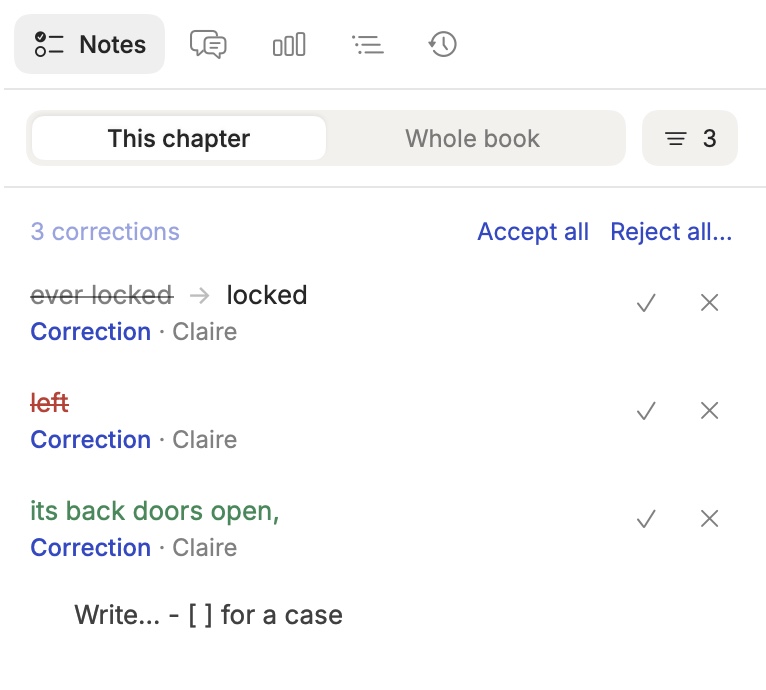
Open the Notes panel (View ▸ Notes, ⌘2) and switch its scope to Whole book. Every pending correction is a row showing what is added, struck or replaced, with Accept and Reject on each. Click a row to go to the passage.
When corrections came from a Word file, each row carries the sender's name. Use the filter to show one person's corrections, then Accept all or Reject all… to decide only theirs.
What is written in the file
Corrections are stored in the chapter itself as CriticMarkup, a plain-text notation any editor can read:
| In the file | Meaning |
|---|---|
{++added++} | An addition |
{--deleted--} | A deletion |
{~~old~>new~~} | A replacement |
{==highlighted==} | A highlight |
{==passage==}{>>comment<<} | A comment on a passage |
{>>comment<<} | A comment on its own |
A correction brought in from an editor's Word file is followed by who made it: {~~old~>new~~}{@Jean}.
So the sentence
She took the {~~morning~>first~~} ferry{-- without a word--}.reads in Musset as morning struck out, first in green, and without a word struck out. In any other Markdown app it is still legible, and nothing about your revision is locked inside Musset.
Tips
- Turn Revise off (⇧⌘E) to go back to plain writing; the corrections already in the text stay until you decide them.
- Musset never shows the braces: you see the struck and green text, and comments as bubbles.
- A correction can span several paragraphs, for instance when a whole passage is cut.
- Accepting or rejecting a highlight keeps the text and drops the highlight. Accepting or rejecting a comment removes it.
How-to · Last changed 2026-11-20 · Correct this page