Write, Revise, Read: the three modes of the page
Musset's page has three modes. Write changes the text, Revise turns every change into a correction, and Read shows the chapter or the whole book typeset as it will print.
One switch, three ways to look at a chapter
At the top of the window is a switch with three positions: Write · Revise · Read. A book goes through all three many times, and the switch is how you tell Musset which one you are doing now.
| Mode | What your typing does | Shortcut |
|---|---|---|
| Write | Changes the text | the default |
| Revise | Proposes changes as corrections | ⇧⌘E |
| Read | Nothing: the page shows the text as printed | ⇧⌘R |
Musset always opens in Write mode.
Write
The page is one column of plain text. The Markdown underneath is shown as you would read it: the asterisks around an italic word are faint in the paragraph you are writing and folded away in the others, and a scene marker becomes a quiet centred title. See the Markdown Musset uses.
A few things to know about the page:
- ↩ starts a paragraph, and ⇧↩ breaks a line inside one.
- Pressing Return again on an empty paragraph starts a scene; see chapters and scenes.
- A small format bar floats at the top of the page: headings, bold, italic, quotation, footnote, new scene. Hide it with Format ▸ Show Format Bar.
- The font, the size, the width of the column and the space between paragraphs are yours to set in Settings ▸ Editor.
A pill at the bottom right of the page shows the chapter's count and status, and how many notes and corrections it holds. It fades while you type and returns when you stop.
Revise
In Revise, deleting strikes the words out without removing them, and typing adds words in green. Each change is a correction you accept or reject later, with a keystroke.
Use it for your own second pass, and it is where other people's changes arrive. The whole mode is described in Revise mode and corrections.
Read
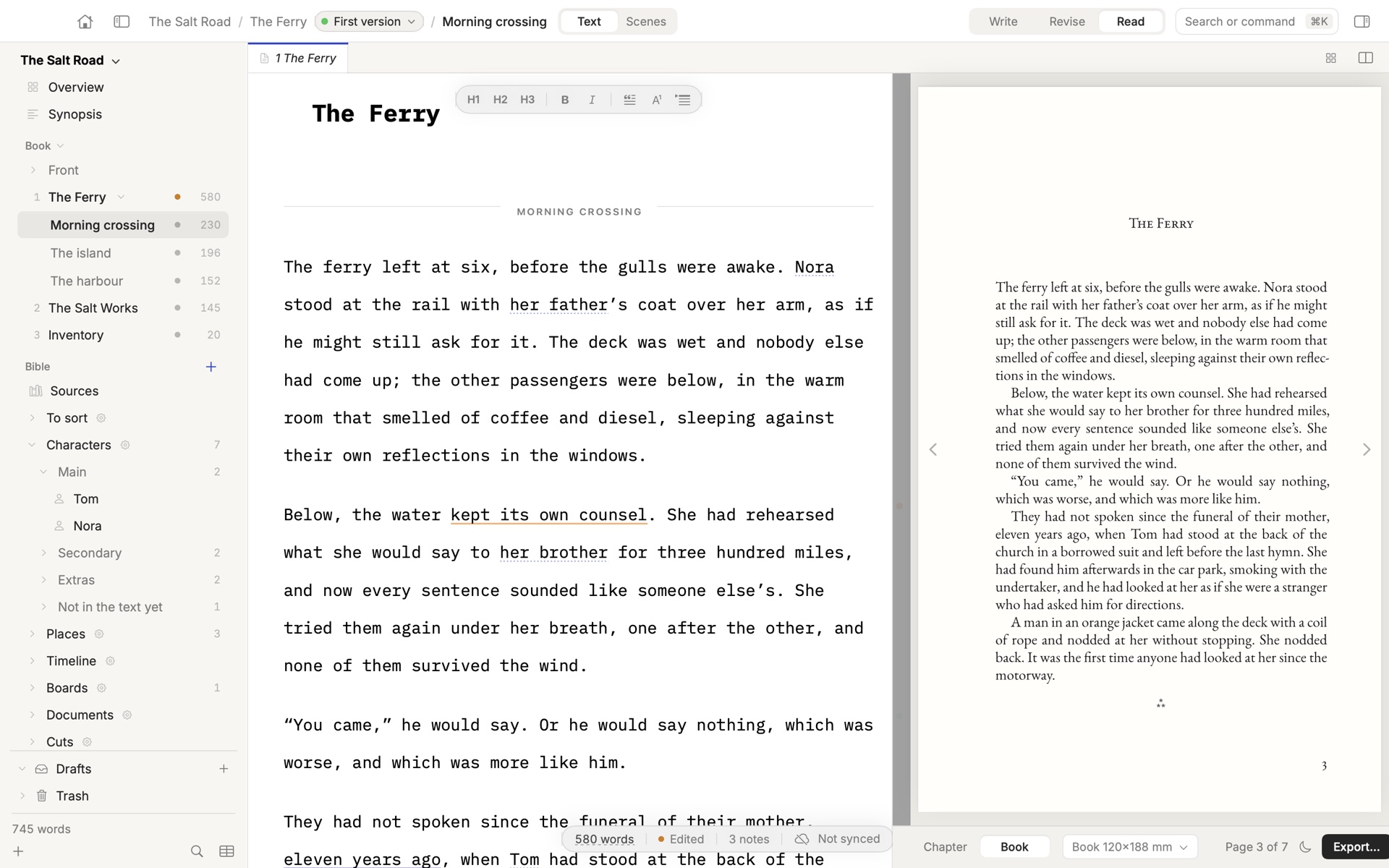
Read mode sets the text in pages, in EB Garamond, the way the printed book will look. Choose it in the switch, or Write ▸ Reading Mode (⇧⌘R).
- On a wide window the pages sit beside the text, and you keep writing on the left.
- On a narrower one the pages take the place of the text; press Esc to go back to writing.
- Under the pages, choose Chapter or Book, the page format (a book page of 120 × 188 mm, or A4), and Night for dark pages.
- Export… is one click away when what you see is what you want to send.
Reading your chapter as a page is the cheapest editing trick there is: a sentence that was fine in the draft's typeface often is not in a book's.
Light and dark
Musset follows macOS by default. To choose, open Settings ▸ General ▸ Appearance, or the command bar (⌘K) and type light, dark or follow.
Guide · Last changed 2026-11-20 · Correct this page