Scene cards: rearrange a chapter, and the book at a glance
Lay a chapter out as cards, each holding its scene's whole text, and move, split or merge scenes by hand. Then step back to a part or to the whole book.
A corkboard that holds the text
Index cards on a corkboard are the oldest tool for restructuring a story. Their weakness in software is that a card usually holds a summary, and the summary drifts from the scene.
In Musset, a card is the scene: it shows the scene's whole text. When you move a card, the text moves in the chapter.
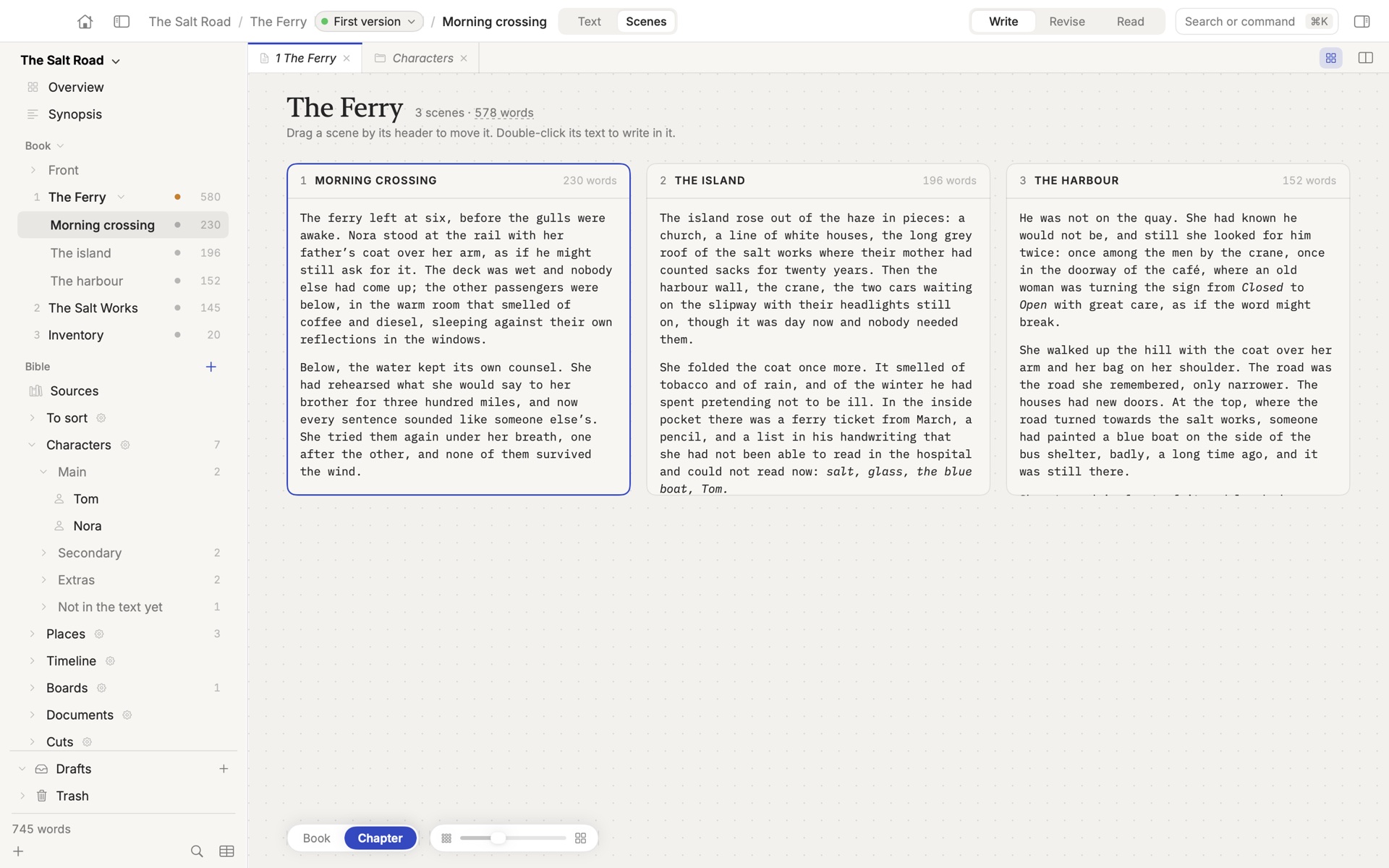
Show a chapter as cards
Open a chapter that has more than one scene and choose View ▸ Scene Cards (⌃⌘L). Choose it again to go back to the text.
To keep the text and have the cards beside it, right-click the chapter's tab and choose Open the Scene Cards Beside.
Each card carries its number, its title, its length and its text. The slider at the bottom left sets the size of the cards.
Move a scene
Pick a card up by its header and put it down elsewhere. A bar shows where it will land. The scene's text moves in the chapter, with its notes and its row in the plot grid.
After a move, Undo the move appears at the bottom left.
Split a scene
Move the pointer between two paragraphs of a card. A dashed line and a button appear: Split here. The scene is cut at that paragraph, and the new scene's title is ready to type.
Merge two scenes
Right-click a card and choose Merge with the Next Scene. The two texts become one scene under the first one's title.
Rename, and go to the text
Double-click a card's title to rename it. Double-click a paragraph to leave the cards and land in the text at that paragraph, ready to write.
The cards are for reading and arranging. Writing stays in the editor, a double-click away.
Step back: part, then book
At the bottom left of the cards is a zoom with three levels: Book · Part · Chapter.
Part. Each chapter of the part is a lane of its scenes. This is where a scene moves from one chapter to another: drag it into another lane. In a book without parts, move a scene between chapters from the Plan panel (⌘6).
Book. Every chapter is a card showing its title and status, how many scenes it has and how long it is, the lines it opens on and the lines it closes on. Reading only the openings and closings of twenty chapters in a row tells you a great deal about the book's rhythm: three chapters that all end on a door closing, for instance.
You reach the same view from Overview at the top of the sidebar. Above the board, the overview shows the book's numbers: progress toward your goal, estimated pages, reading time, words today and this week, and one bar per chapter coloured by status or by strand.
Switch the board to List for a table: one row per chapter with its status, length and last change.
When to use which
| You want to | Use |
|---|---|
| Reorder the beats of one chapter | Scene cards |
| Move a scene to another chapter | The part level, or the Plan panel |
| Judge the order of chapters | The book level, then drag in the sidebar |
| Follow a subplot across the book | The plot grid |
| Think before there is any text | A board |
How-to · Last changed 2026-11-20 · Correct this page