A story bible for your novel: characters, places and timeline
Keep character sheets, places, a timeline, documents and research in the book's Bible, a visible folder in your book. Musset tracks who appears where, and keeps what you cut.
What a story bible is
By chapter twenty you no longer remember whether Marta's eyes are grey or green, which year the ferry stopped running, or whether the baker has a name. A story bible is where a novelist keeps those facts so the book stays consistent.
In Musset the Bible is part of the book. It sits in the sidebar under the chapters, and on disk it is a visible bible/ folder inside the book's folder, made of plain Markdown files you can read in the Finder.
What goes in it
| Folder | For |
|---|---|
| Characters | A sheet for each person, and biographies |
| Places | A sheet for each place, with a map if you like |
| Timeline | Events and their dates |
| Boards | Cork boards |
| Documents | Research: PDFs, images, saved web pages, references |
| To sort | Notes you have not filed |
| Cuts | Passages you cut from chapters, kept for you |
Add folders of your own for anything else: Languages, Recipes, The War.
Make a sheet
Click + beside Bible in the sidebar and choose Character, Place, Event, Biography, Note or Reference.
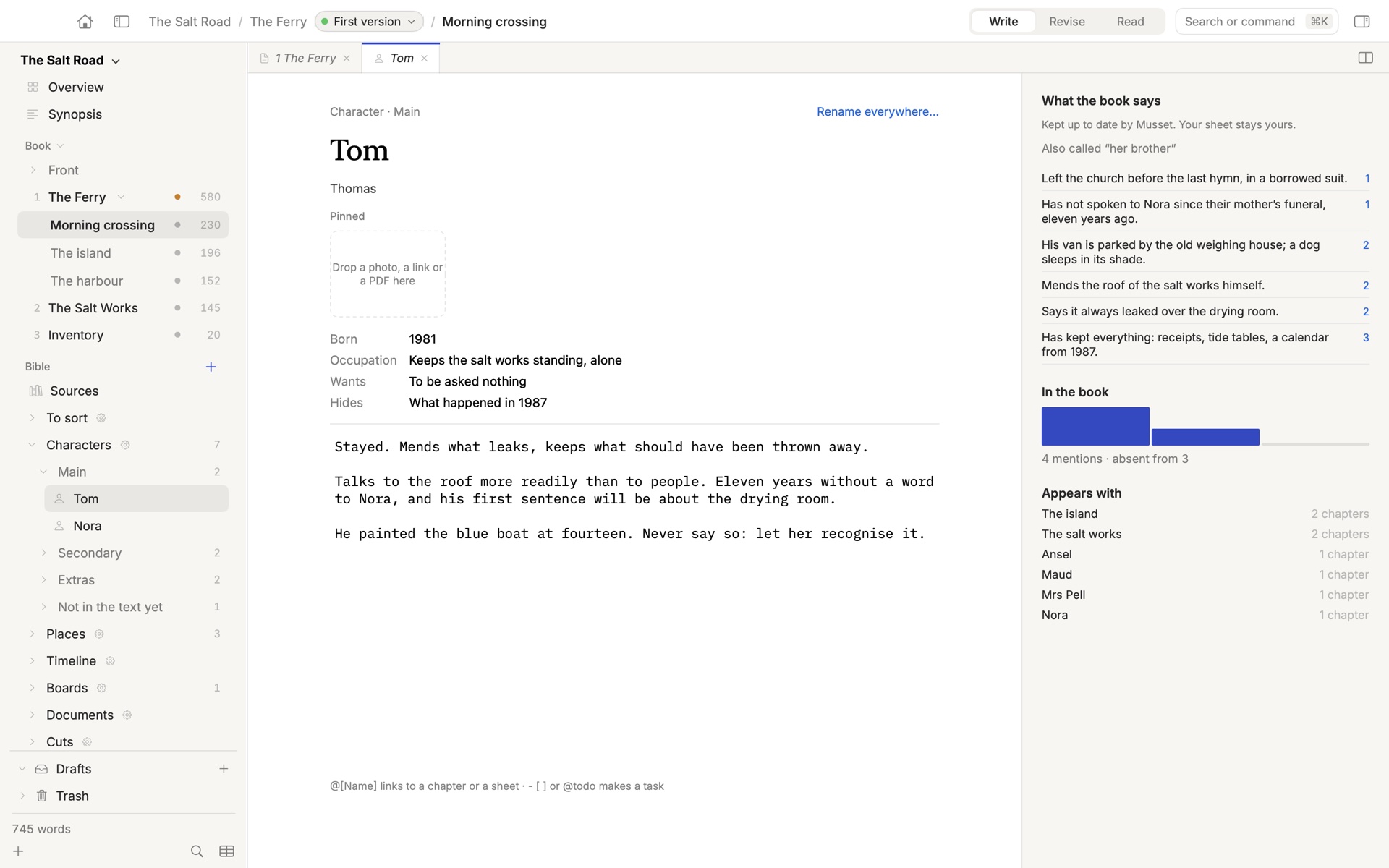
A sheet is a drawer, not a form. A character starts with four suggested lines, Born, Occupation, Wants, Hides, and you add whatever your book needs: Smells of, Is afraid of, Last seen. Below the fields is free text for everything else.
Two fields matter more than they look:
- the title is the name Musset looks for in your chapters;
- Also written takes the other ways the text names them, separated by commas: Rosie, Mme Verdier.
To link from a sheet to a chapter or to another sheet, type @[Name].
Where a character appears
On a sheet for a character or a place, the side column shows In the book: one bar per chapter, taller where the name comes more often, and the chapters from which they are absent. Click a bar to open the chapter. Appears with lists who shares their scenes.
This is counted from your text, on your Mac, with no AI. It answers the structural questions quickly: a main character missing from chapters 9 to 17 is visible at a glance.
The cast, sorted for you
Musset sorts characters and places by how much they are in the book: Main, Secondary, Extras, and Not in the text yet for the ones you have planned and not written. They regroup on their own as the book grows.
The Characters page shows them as a board of columns. If Musset has it wrong, because your villain appears in three scenes and matters in all of them, drag the card to the column you want and it stays there.
What the book says
Your sheet says what you decided. Your chapters say what you actually wrote. They drift apart, and that drift is where continuity errors come from.
With the AI reader on, each character and place sheet has a second part, What the book says: the facts your chapters state about them, each with the chapter it comes from and the exact words. Click a fact to open the chapter at the sentence. If two facts cannot both be true, green eyes in chapter 3 and grey in chapter 14, Musset points at the pair.
Your own sheet is never touched: Musset keeps this part separately, and updates it as chapters change.
New names
When a new name appears in your chapters, Musset can notice it and offer it a sheet. Names it knows are lightly underlined in the text, so the sheet is a click away while you write.
Cuts: nothing is lost
Select a sentence or more in a chapter and cut or delete it, and Musset keeps it in Cuts, with the chapter it came from and when. You do not have to do anything.
Open the Cuts folder to see what you removed, newest first. Put back in the chapter returns a passage to where it was. Knowing the paragraph is safe makes it much easier to cut.
Research and sources
Drop a PDF, an image or a text file on a folder of the Bible. PDFs open inside Musset; select a passage and choose Keep the passage to highlight it and list it with the document. Search covers the text of your PDFs, scanned ones included.
For non-fiction, the Sources page keeps your references. Paste a DOI, an ISBN or a web address and Musset fills in the author, title and year; or drop a .bib or .ris file from your reference manager. In the text, type [@ to cite one.
Open a sheet while you write
- Press ⌘K and type the name.
- Press ⇧⌘O to open it beside your chapter. See panes, tabs and windows.
- Change a name everywhere with Rename.
On disk
Sheets are Markdown files with a few lines on top for the kind, the title and your fields. They are in the book's history and travel with Musset Sync. The documents folder is the exception: research files can be large, so they stay out of the history.
How-to · Last changed 2026-11-20 · Correct this page