Margin notes, to-dos and quick capture
Leave a note on a passage, turn it into a question or a task, tick it off when it is dealt with, and capture an idea from anywhere on your Mac without leaving what you are doing.
Notes that stay beside the text
A manuscript gathers remarks: check the tide times, too long?, she already said this in chapter 4. Written into the text they pollute it; written elsewhere they lose their place.
A margin note in Musset is attached to a passage and kept outside the text, in a file of its own. It follows its passage as you edit around it, and it is never exported.
Leave a note
- Select the passage.
- Press ⌥⌘N (Write ▸ Add Note…).
- Choose its kind: Note, Question or To do.
- Type, and press ⌘↩ to save.
The passage gets a thin underline in the note's colour and a dot in the margin. Rest the pointer on it to read the note; click the dot to open it in the panel.
The Notes panel
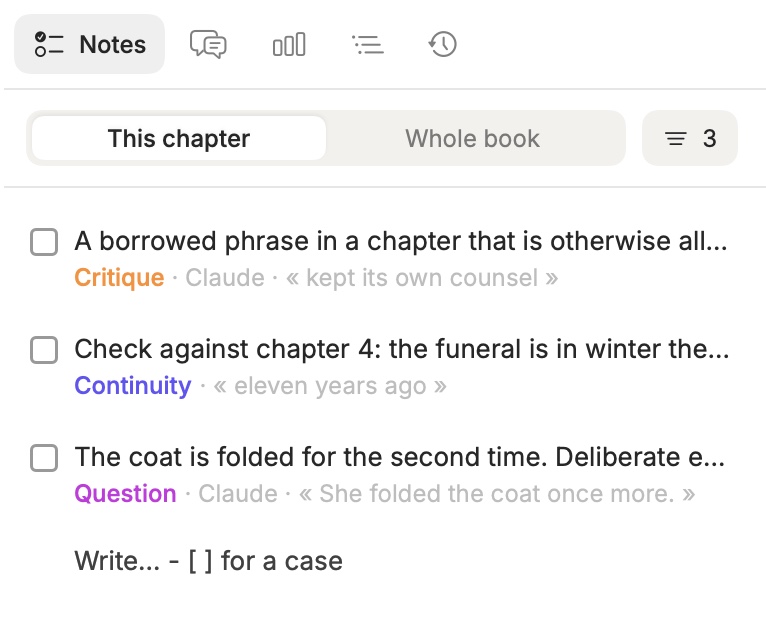
Press ⌘2. The panel lists the notes of the chapter in the order of the text, or of the Whole book with the switch at the top.
- Click a note to unfold it and to scroll the text to its passage.
- Tick the box when it is done.
- Choose Resolve when it is settled without anything to do.
- Open the thread to reply to yourself over time: a note can hold a small conversation.
Ticked and resolved notes leave the list. The filter button brings them back, and narrows the list by kind or by author.
At the bottom of the panel, a line lets you jot something that is about the chapter but not about a passage. Start it with - [ ] and it becomes a task.
Kinds of notes
Each kind has a colour, in the margin and in the panel:
| Kind | Used for |
|---|---|
| Note | A remark |
| Question | Something to decide or find out |
| To do | A task |
| Critique · Tic · Repetition · Cut | What reads badly, and why |
| Continuity · Fact check | What may contradict the book, or the world |
| Strength | What works. Hidden while you write unless you ask for it. |
You write the first three most often. The others are also what the editor inside leaves when you ask for a reading, and you can change any note's kind.
The same panel lists the corrections waiting in the text and the proofreader's findings, so one list holds everything the chapter still needs.
To-dos
A to-do is simply a note of the kind To do, or a line starting with - [ ] in a sheet of the Bible. Musset gathers them:
- in the Notes panel, filtered by kind;
- on the book's Overview, with the number open in each chapter.
Tick one anywhere and it is ticked everywhere.
Capture an idea from anywhere
The idea for chapter twelve arrives while you are answering e-mail. Press ⌃⌥N, from any app: a small field appears over whatever you are doing.
- Type the note and press ⌘↩. It is filed in the open book, in the Bible's To sort folder.
- Type
@to link it to a chapter or a sheet. A note that names a chapter goes to that chapter's notes. - Write
@todoand the line is a task.
Esc closes it. You are back in your e-mail with the idea safe. The same field is under File ▸ Capture a Note….
When the passage is gone
If you rewrite a passage until nothing of it remains, its note cannot find its place and is marked Lost passage. The note is kept, and Find it in the history looks up where the passage went in the book's history.
Notes, comments, or notes to yourself?
| You want | Use | Kept in |
|---|---|---|
| A remark to list, tick and filter | A margin note, ⌥⌘N | A file beside the chapter |
| A remark that is part of a revision | A comment, ⇧⌘M; see corrections | The chapter's text |
| A reminder exactly in place | <!-- like this -->; see Markdown | The chapter's text |
| A word with a reader about a passage | A conversation; see sharing | The shared book |
None of them is ever exported.
On disk
Notes are in .musset/notes/, one Markdown file per chapter, written as an ordinary checklist you could read in any editor. They are in the book's history and travel with Musset Sync.
How-to · Last changed 2026-11-20 · Correct this page