Cork boards for plotting: pin characters, places and ideas
Plan a novel on a board inside the book. Pin character sheets, places with their maps, notes, images and links, draw arrows between them, and watch the cards light up as you write.
A wall for the book
Some thinking does not fit in a list. Who knows whose secret, how three families are tied, what the house looks like floor by floor: these are things you pin to a wall and connect with string.
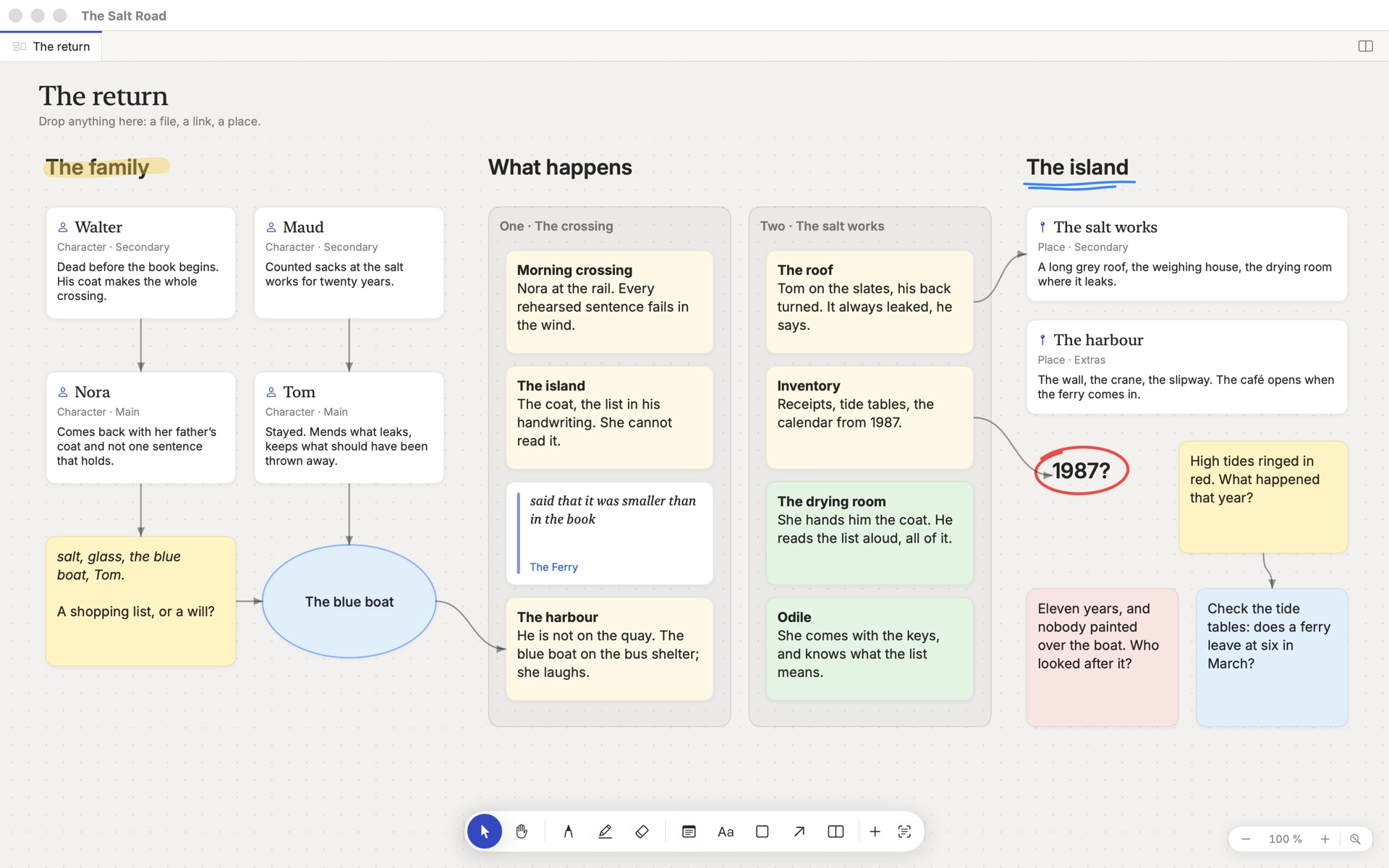
A board in Musset is that wall, inside the book. It holds your real character and place sheets as cards, so the board and the Bible are never two versions of the truth.
Make a board
Click + beside Bible in the sidebar and choose New board. Double-click its title, top left, to name it: The Verdier family, Act two, The island.
Make as many as you need. They live in the Bible's Boards folder.
Put things on it
| To add | Do this |
|---|---|
| A note | Double-click the background and type |
| A character or a place | Drag its sheet from the sidebar onto the board |
| An image or a PDF | Drag it from the Finder |
| A web page | Drag the link from your browser |
| A title, a shape, a column | Use the toolbar at the bottom |
A sheet's card shows the sheet. Double-click it and the sheet opens beside the board. A place's card can show its map.
Removing a card from a board never deletes the sheet or the file it shows.
The tools
The toolbar is at the bottom of the board. Each tool has a letter.
| Tool | Key |
|---|---|
| Select | V |
| Hand, to move around | H, or hold Space |
| Marker · Highlighter | M · ⇧M |
| Eraser | E |
| Sticky note | S |
| Text | T |
| Shape | R |
| Arrow | X |
| Column | ⇧S |
Connect cards
Select a card: four small magnets appear on its sides. Drag from one to another card, and an arrow joins them. The arrow holds on to the sides you chose and follows the cards when they move.
Click an arrow to change its colour, make it dashed, reverse it or remove it.
Group cards in columns
Draw a column with ⇧S, or select several cards and press ⌘G. Name it: Act one, Suspects, Before the war. Cards inside a column move with it; drag one out and it is free.
Columns turn a board into a kanban of scenes, a three-act outline, or a set of family trees side by side.
Draw on it
The marker and the highlighter draw freehand, in six colours and three widths: circle a group, cross out an idea, sketch the plan of a room. The eraser removes strokes and nothing else.
Move around
- Scroll with two fingers, or hold Space and drag.
- Pinch to zoom, or use ⌘= and ⌘-.
- ⌘0 shows the whole board.
- Arrow keys nudge the selection; ⌘D duplicates it; ⌫ removes it from the board.
The board that follows your writing
Open a board beside the chapter you are writing (⇧⌘O, or drag the board to the side of the window). Turn on the last button of the toolbar, Follows the text.
Now, as you write, the cards of the people and places named in the paragraph under your caret light up. Write Marta crossed to the salt works and Marta's card and the salt works glow on the wall. It is a quiet way of keeping the cast in view, and of noticing who has not been on stage for a while.
On a second screen, a board makes a good permanent wall. See panes, tabs and windows.
An open format
A board is a JSON Canvas file in your book's bible folder. That is an open format: Obsidian, among others, opens the same file. Like everything else in the book, your boards are readable without Musset.
Board, grid or cards?
- Use a board to think freely, before or beside the text.
- Use scene cards to rearrange text that exists.
- Use the plot grid to follow threads scene by scene.
How-to · Last changed 2026-11-20 · Correct this page