Split view, tabs and a second screen
Put two chapters side by side, keep a character sheet next to the page, park a board on a second screen, and save an arrangement of panes under a name.
More than one thing in view
Writing a novel means looking at two things at once: the chapter and the one before it, the scene and the character's sheet, the text and the board. Musset's window splits into panes, each with its own tabs, and any tab can become a window of its own.
Almost anything can be a tab: a chapter, its scene cards, a Bible sheet, a board, the plot grid, the book's overview, the book's history.
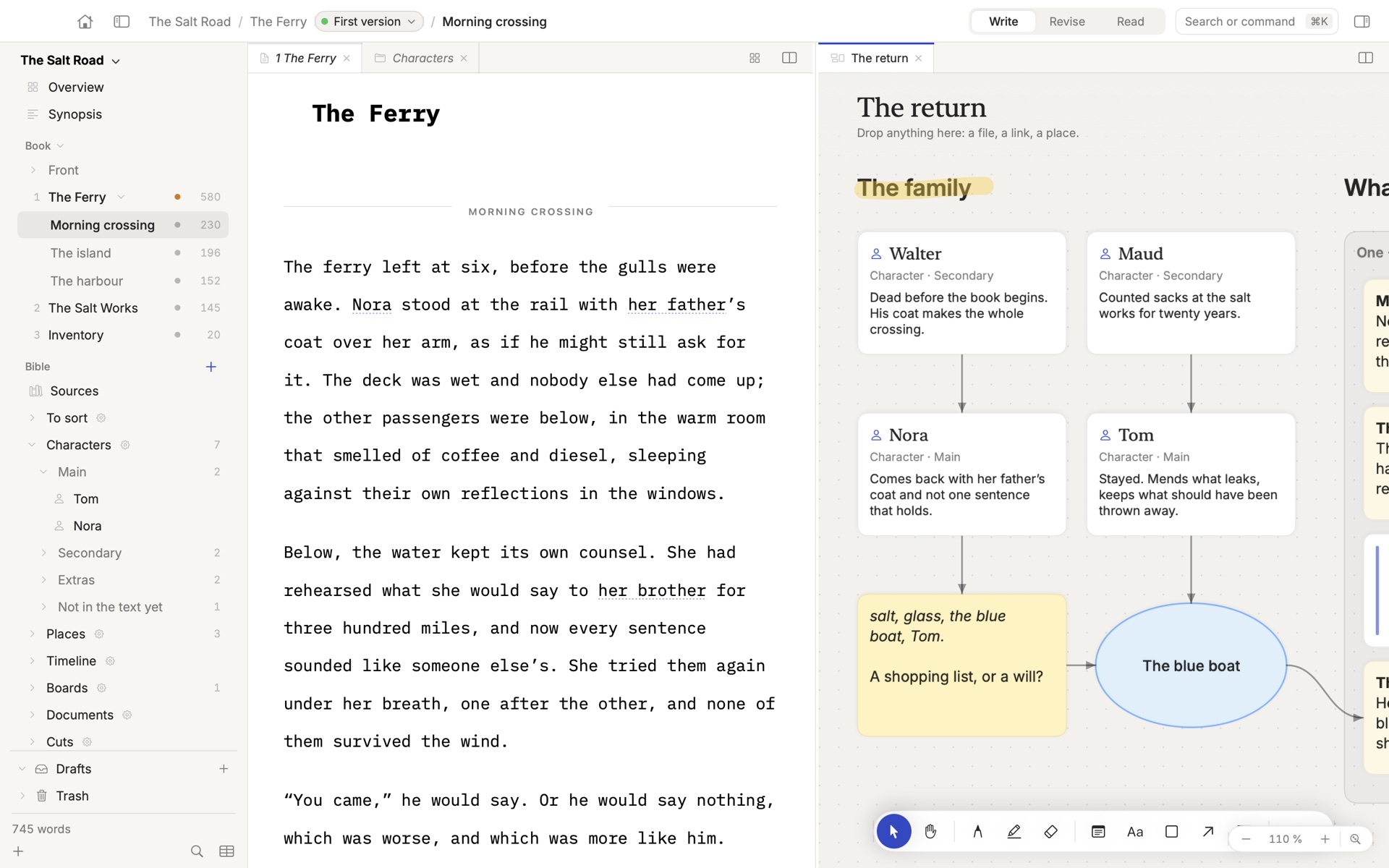
Open something beside the page
Three ways, from quickest to most visual:
- ⇧⌘O, then type a name. The chapter or sheet opens in the next pane.
- ⌘-click it in the sidebar.
- Drag it from the sidebar onto the side of the window where you want it: left, right, top or bottom. A highlight shows where it will land.
To split what you are looking at, press ⌘\ (Split Right) or ⌥⌘\ (Split Down).
Two panes can show the same chapter. It is one text: what you type in one appears in the other, which is how you keep the opening in view while writing the ending.
Tabs
A plain click in the sidebar opens a preview tab, with its title in italics. The next click replaces it, so browsing ten sheets does not leave ten tabs. A preview becomes a kept tab when you type in it or double-click its title.
⌥-click in the sidebar opens a kept tab at once. Drag tabs to reorder them, or onto another pane to move them.
| Shortcut | Does |
|---|---|
| ⌃⇥ · ⌃⇧⇥ | Next · previous tab |
| ⌥⌘→ · ⌥⌘← | Next · previous pane |
| ⌘W | Close the tab |
| ⇧⌘W | Close the window |
Drag the line between two panes to resize them. Closing a pane's last tab removes the pane.
Windows and a second screen
Right-click a tab or a sidebar row and choose Open in New Window, or simply drag a tab out of the window. It becomes a window of its own, with its own panes and tabs.
On two screens, a common arrangement is the manuscript in front of you and, on the other screen, a board that lights up the characters of the paragraph you are writing, with the Bible beside it.
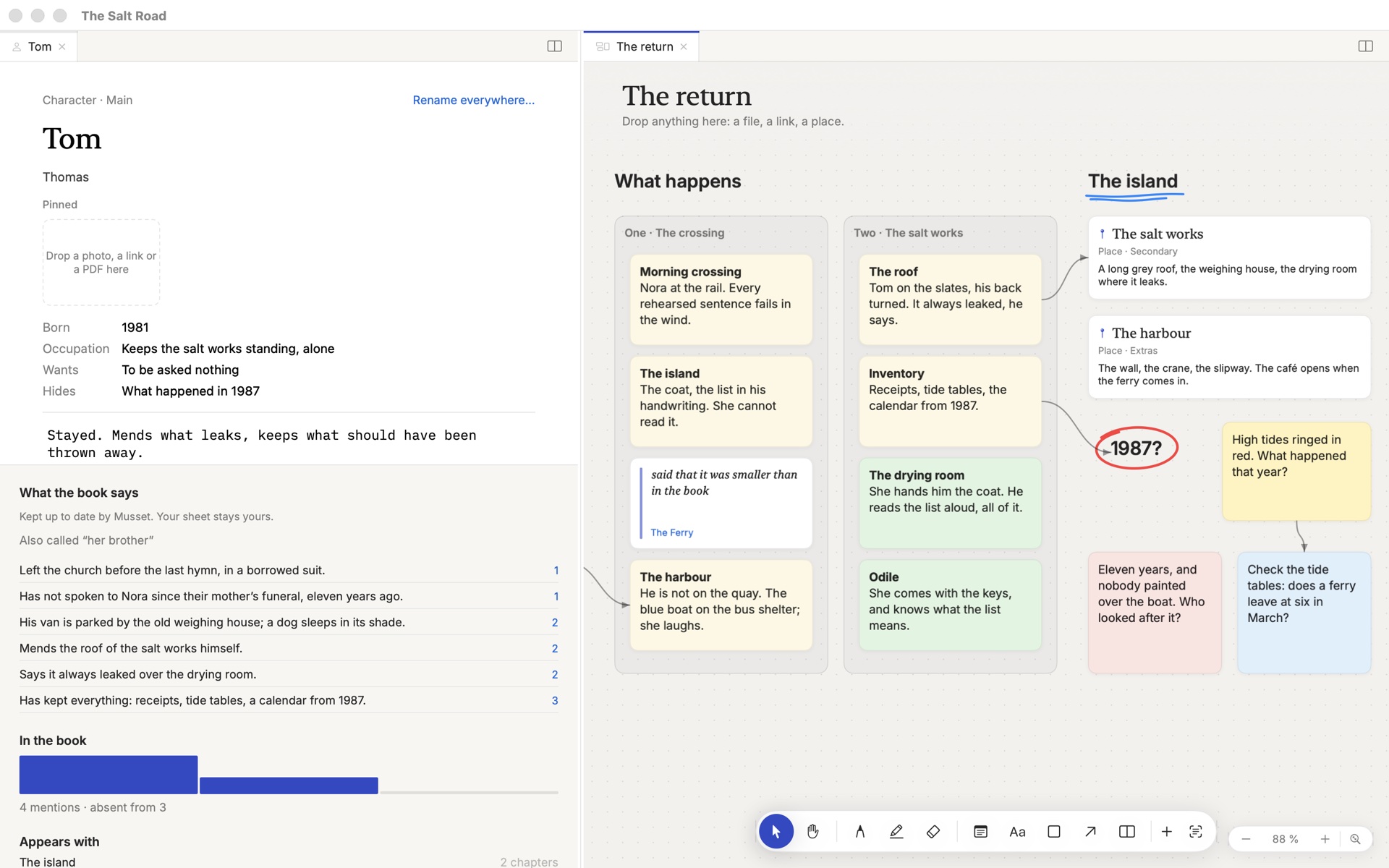
Windows left open when you quit come back with the book.
Save a layout
When an arrangement works, keep it:
- Choose Panes ▸ Save the Layout… and name it: Drafting, Revision, Plotting.
- Call it back from Panes ▸ Layouts, or press ⌘K and type its name.
A few that writers keep:
| Layout | Panes |
|---|---|
| Drafting | The chapter alone |
| Continuity | The chapter, and the previous chapter beside it |
| Revision | The chapter, and its scene cards |
| Plotting | The plot grid, and a board |
Layouts belong to the book and to this Mac: your laptop and your desk each keep their own.
When you want none of it
Press ⇧⌘D. Focus mode shows only the pane you are writing in, without its tabs, and gives everything back when you leave it.
How-to · Last changed 2026-11-20 · Correct this page